Memory Types and How to Identify Them
PC memory types can be broken down into four main standards:
- Form factor (size / physical format)
- Memory generation
- Performance (transfer rate / clock speed)
- Capacity
These details are usually printed on the manufacturer label attached to the memory module, so reading that label is typically enough to identify what type of memory it is.
For example, for a module labeled “DDR4 SDRAM DIMM PC4-25600 (DDR4-3200) 8GB,” the breakdown is:
- Form factor: SDRAM
- Memory generation: DDR4
- Performance: 25.6GB/s transfer rate, 3200MHz clock
- Capacity: 8GB
“DDR4 (memory generation) SDRAM DIMM (form factor) PC4-25600 (DDR4-3200) (performance) 8GB (capacity)”
Once this identification method and the memory types are understood, it becomes much harder to accidentally buy the wrong RAM—so it’s worth remembering.
Desktop vs. Laptop (Form factor differences)
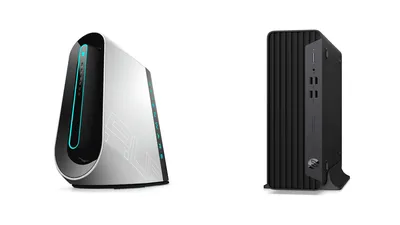
For PC memory size standards, the two most common are “SDRAM DIMM” for desktops and “SDRAM SODIMM” for laptops. Since this is a physical size difference, a mismatch means the module can’t be installed in the first place.
In addition, some models that use server-class CPUs—such as certain Mac Pro configurations—may require “ECC (Error-Correcting Code) memory,” which includes error-correction features.
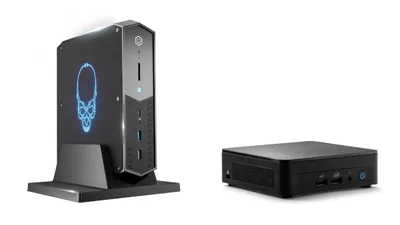
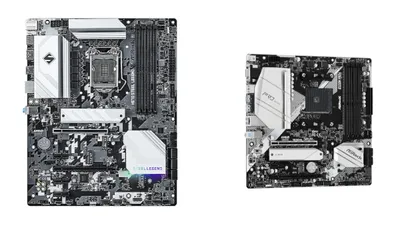
Also, some small PCs (such as Intel NUC) and compact motherboards like Mini-ITX may use laptop-style “SDRAM SODIMM,” so it’s important to verify before buying RAM.
Memory generation types
Memory also has a “generation,” like a version number. This is shown as “DDR#” (where # is a number), and the number must match for compatibility.
They may all be “DDR” memory, but DDR4 and DDR3 are completely different. For example, a PC that uses DDR4 can’t use DDR3, and DDR4 and DDR3 can’t be mixed in the same system.
Performance rating types
As covered so far, if the “size” and “memory generation” match what the PC supports, the RAM will generally work. However, for building a faster system, it’s worth checking the chip spec (operating clock) and the module spec (transfer rate).
For normal tasks like browsing the web or watching videos, the difference may not be noticeable. But when data transfer between the CPU and memory is “large or frequent”—for example, in an on-premises server PC where lots of data is kept in memory—higher-spec memory can feel faster.
Also, chip specs (clock) and module specs (transfer rate) are generally backward-compatible, so even if higher-performance memory is installed than the PC or motherboard officially recommends, it will typically run at the PC/motherboard’s supported spec.
Memory capacity
Capacity is generally based on powers of two, and the most common sizes on the market today are:
- 1GB
- 2GB
- 4GB
- 8GB
- 16GB
- 32GB
Also, if a motherboard supports dual-channel memory, using “two memory modules of the same capacity from the same manufacturer” at the same time can improve memory performance.
Some modern motherboards support not only dual-channel but also “quad-channel.”
If performance isn’t a major concern, this generally isn’t something to worry about too much.
How to Check the Memory in a PC
The best way to check a PC’s memory specs is to look up the official specs on the PC manufacturer’s website (or the motherboard manufacturer’s site for a custom-built PC). Since it’s the manufacturer’s published memory specification, it’s reliable.
There are also methods using apps such as CPU-Z, but these tools only show the “type/spec of the memory currently installed.” So while “size, generation, and capacity” can be verified as actual values, it’s important to note that performance may not reflect the maximum supported spec.
How to Choose the Right Memory
Make sure the size and generation are correct
As described earlier, “size and memory generation” must match for the RAM to work. Be careful not to get this wrong.
If there’s any uncertainty, it’s best to write down the PC or motherboard model number and ask staff at a PC store or electronics retailer to help choose compatible memory.
Pay attention to the brand and sales channel
Recently, counterfeit/scam memory—often from low-cost imports—has been increasingly common.
There are several types of scam memory, but the main ones are:
- Fake branding (pirated products that aren’t actually the brand’s genuine memory)
- Fake capacity
Fake branding mainly affects performance, while fake capacity means the real usable capacity is less than what’s advertised.
Because packaging and printed labels on the module can be very convincing, it may not be possible to tell by appearance alone.
To avoid getting scammed:
- Buy memory from major manufacturers
- Buy from trusted retailers
Even Amazon Japan is not always 100% reliable for buying memory these days, because many sellers are overseas vendors and some may be scamming. When buying on Amazon, check that “the seller is the memory manufacturer” or that “it’s sold by Amazon.”
For maximum safety, buy from electronics retailers with direct relationships with manufacturers (such as Yodobashi Camera) or dedicated PC retailers (such as Sofmap). Prices may be slightly higher than online listings, but compared to the risk of getting a defective or counterfeit product, the difference is usually not significant.